After you have defined a cycle count, the next step is to perform the first count.
To do the first count:
1. Navigate to Operations > Inventory Management > Cycle Counts > 1st Count Inquiries > Open to be 1st Counted.
The Open Cycle Masters Inquiry dialog will display.
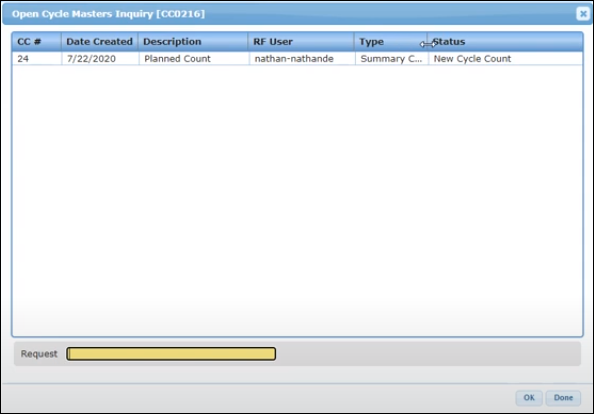
2. To view the bin that you are counting, click the CC#.
The Cycle Count Discrepancy Inquiry dialog will display.
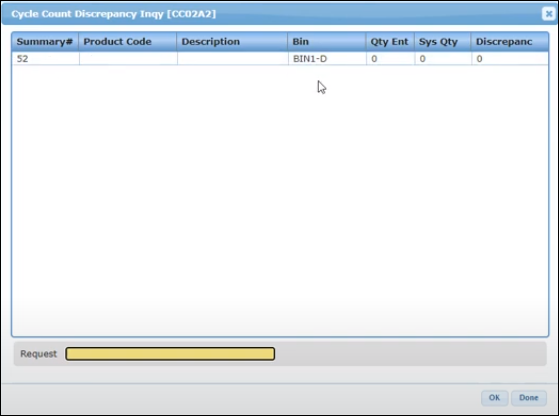
3. Note the cycle count number to do the counting.
The next step is to navigate to the mobile device.
4. Log into mobile device and navigate to Scan Functions > Cycle Counts > 1st Counts > Planned Count.
The Cycle Count Rf Scan dialog will display.
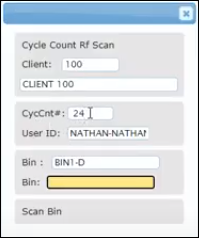
5. Scan the Bin location, Part name, enter the Qty counted, and press Enter.
6. Scan all the Part names, in the selected Bin, and enter the Qty counted for each part.
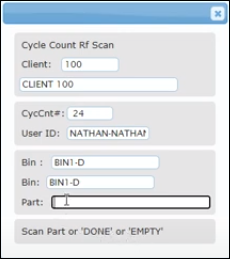
7. After you have scanned all the parts in the bin, enter DONE in the Part field and press Enter.
The first count will be completed.
Refer to First Count Completed for the next step.