The Directed Order Pick option allows you to pick directed orders, mark stock as missing or damaged.
To pick a directed order:
1. Navigate to Operations > Order/Shipment Processing > Picking > Directed Order Pick.
The Directed Order Pick dialog will display.
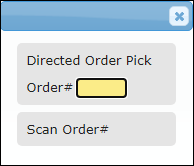
2. Enter the order number in the Order# field.
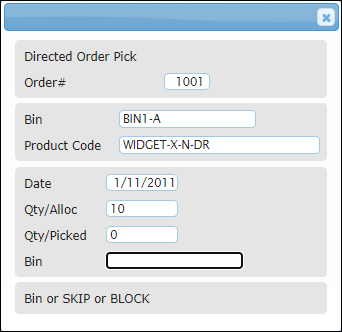
3. Enter the Bin location.
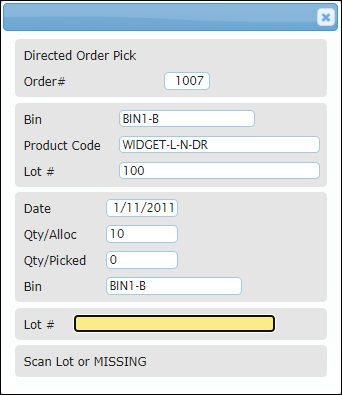
4. Enter Lot #.
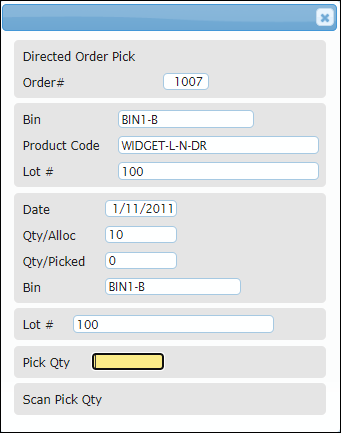
5. Enter the quantity to be picked in Pick Qty field.
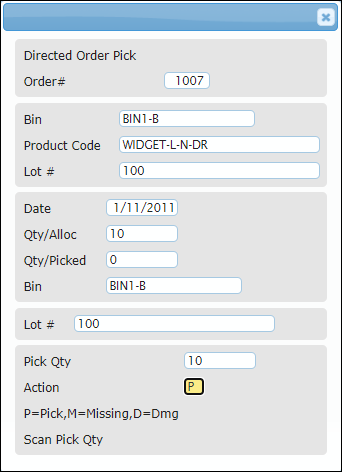
6. To pick the stock, enter P in the Action field.
The specified stock will be picked.
7. To mark the stock as missing, enter M in the Action field.
The stock will be updated as missing.
8. To mark the stock as damaged, enter D in the Action field.
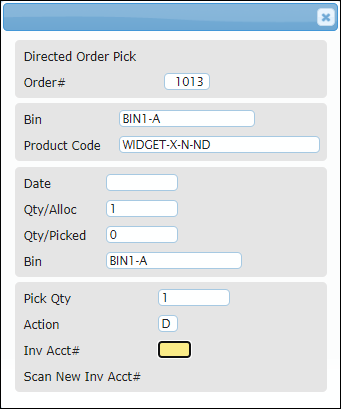
9. Enter the inventory account in which the stock is damaged in the Inv Acct# field.
The stock will be updated as damaged.
10. Repeat process until all items are picked and you get a “Picking Complete” message.