Manual Allocation
To allocate specific inventory items to an order, Manual Allocation may be run.
From the "Order/Shipment Processing Menu", select "Manual Allocation".

The user inputs or scans the Order Number, followed by the "Scan Line". The Line ID is in the format "xxxxxxYYY" where "xxxxxx" is the Order Number and "YYY" is the line number.
Note: The Order Print has the Line ID in a barcode format for scanning purposes.
After entering the Line ID, the system will prompt the user for inventory information (such as Serial# and/or Lot# and Bin Location) based on the order line's product attributes.
Product Attributes
Based on the line's Product Master File settings, the Manual Allocation process prompts for any required information. As a result, the screen changes based on the Product Code being allocated. See Products for more information on product master inventory attributes.
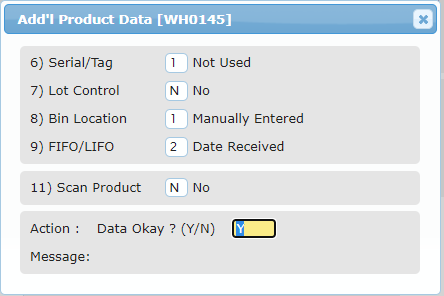
After all of the required Allocation information is entered, the system prompts the user for the Quantity to allocate. The system then checks for matching available inventory based on the entered criteria.
If available inventory cannot be found, an "Invalid – Inventory Unavailable" error message displays.
If inventory is found and the allocation entry is accepted, the "Qty/Acc" is incremented accordingly. If the total Quantity Accumulated is then equal to the Quantity Ordered, the system will alert the user that the line item has been fully allocated.
Repeat for each line item on the order.
Exiting Manual Allocation
To exit a Manual Allocation screen, press ESC to move up one field at a time. Pressing ESC at the first question exits Manual Allocation and returns the user to the menu.
View/Delete Allocation
Any time after the user has entered the Order# in the Manual Allocation screen, the F5 Function Key may be selected to print an Allocation Progress Report.
Any time after the user has entered the Order# and the Scan Line, the F4 Function Key may be selected to display an Allocation Inquiry.
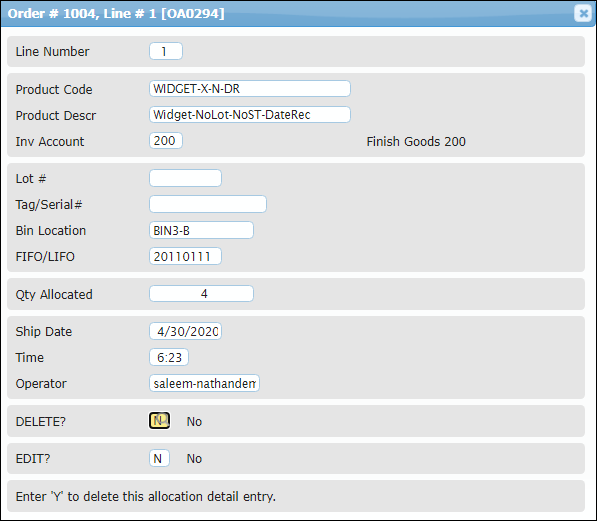
If the user needs to remove any of the Allocation entries, the delete functionality can be found in the F4 Inquiry. Double-click a record and a screen with the Order's Allocation information displays. To delete the entry, at "DELETE?" select ‘Y' (Yes) otherwise select ‘N' (No). If "Y" is selected, the user will be asked again, "Are you sure?" before conducting the deletion.
Press ESC to exit the F4 Function Key Inquiry and return to the Manual Allocation entry screen.
Manual Allocation updates the Order's Allocation Status appropriately. After the first inventory item is allocated, the Order will have an Allocation Status of "Partial". When all of the line items have been allocated in full, the Allocation Status of the Order changes to "Complete".